Overview
This section outlines the required inputs and step-by-step procedures for increasing system demand in Suite — creating and running a What-If scenario that scales overall grid demand by a specific multiplier to forecast potential market outcomes.
- Required Inputs
- Step-by-step procedure
- Exercise
What-If Scenarios
Evaluating What-If scenarios is essential for gaining a deeper understanding of market dynamics. By monitoring how a system adjusts to fluctuating variables, analysts can more accurately project price volatility and market trends.
This section covers four primary What-If scenario types:
- Simulating a Unit Outage — Models the market impact of taking a specific generation unit offline
- Increasing System Demand — Scales overall grid demand by a specific multiplier
- Adding Line Constraints — Introduces specific transmission limits using an event file
- Scaling VRE Generation Capacity — Modifies the maximum output of specific renewable stations
The scope of potential What-If simulations is extensive and is not restricted to the primary examples provided above.
Prerequisites
Before running a What-If Scenario, ensure you have the following input files prepared:
- Demand File — A forecasted or historical regional demand profile
- Must-Run Generation File — Forecasted or historical capacity factor data for must-dispatch plants
- Bid Files — The set of bid profiles to be utilized (Historical, Custom, Typical, or Dynamic)
- Event File — Defines the specific constraints or variations applied to the base scenario, such as demand scaling, added generation, or transmission line limits
See Create Event for more information on Event Files, and the Bid Manager pages for information on Bid Files.
Step-by-Step Guide
- Phase 1: Command Module Initialization
- Phase 2: Scenario Variations
- Phase 3: Execution and Comparison
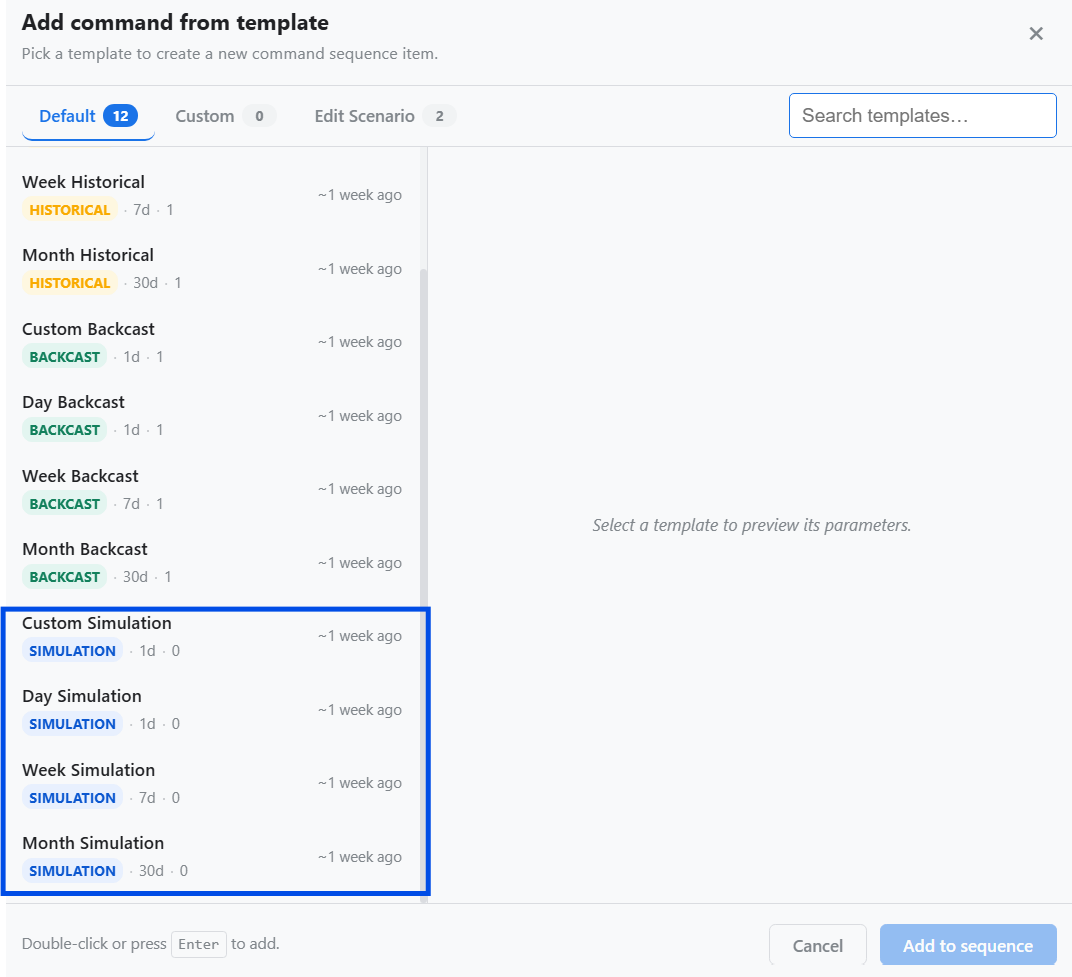
Select a Template
Click Add Command. Choose a simulation template (Custom, Day, Week, or Month). For this activity, select Week Simulation.
Seed from Historical
Click Seed from Historical. This will automatically add the generation, demand, and event files from the historical load.
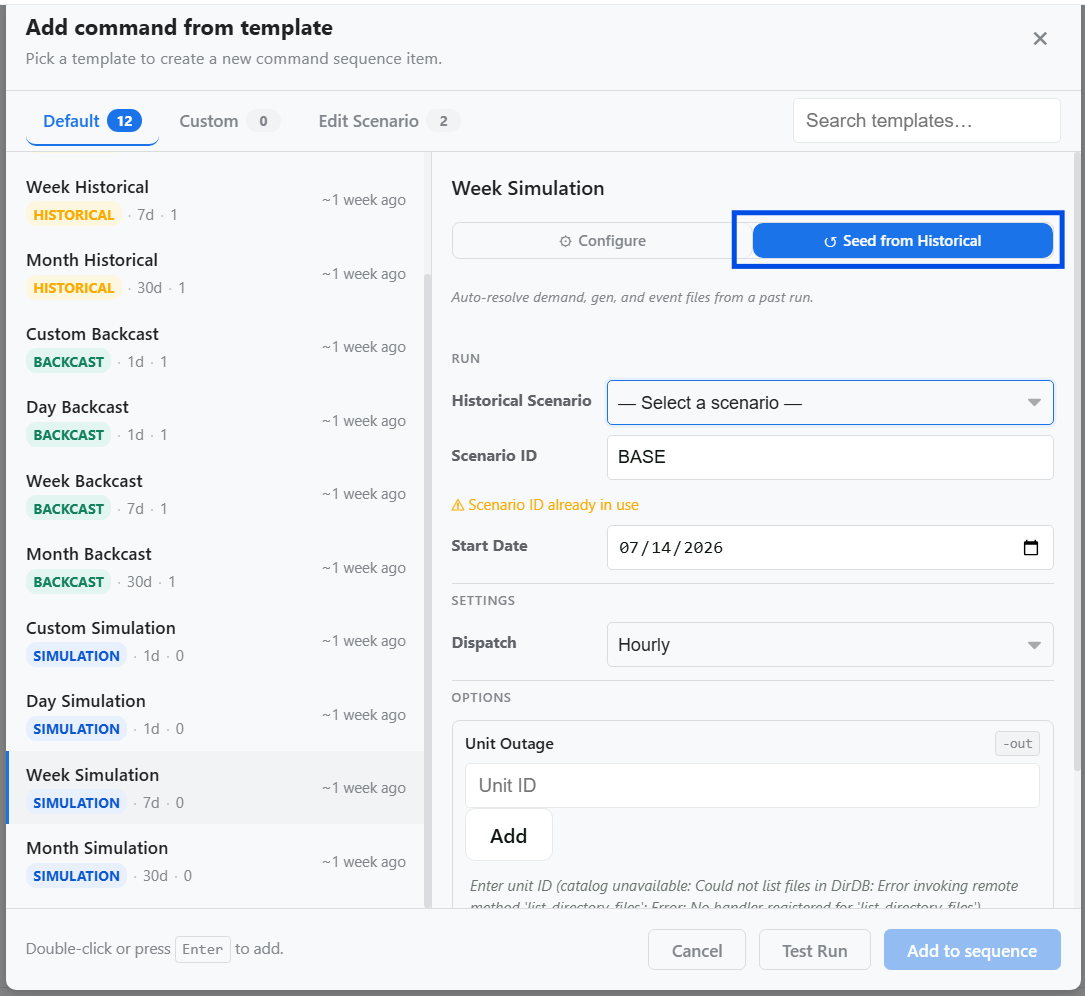
Configure Mode enables full customization of your inputs (e.g., generation, demand, events, and bids).
Exercise
Give it a try and do this exercise:
Step 1 of 4
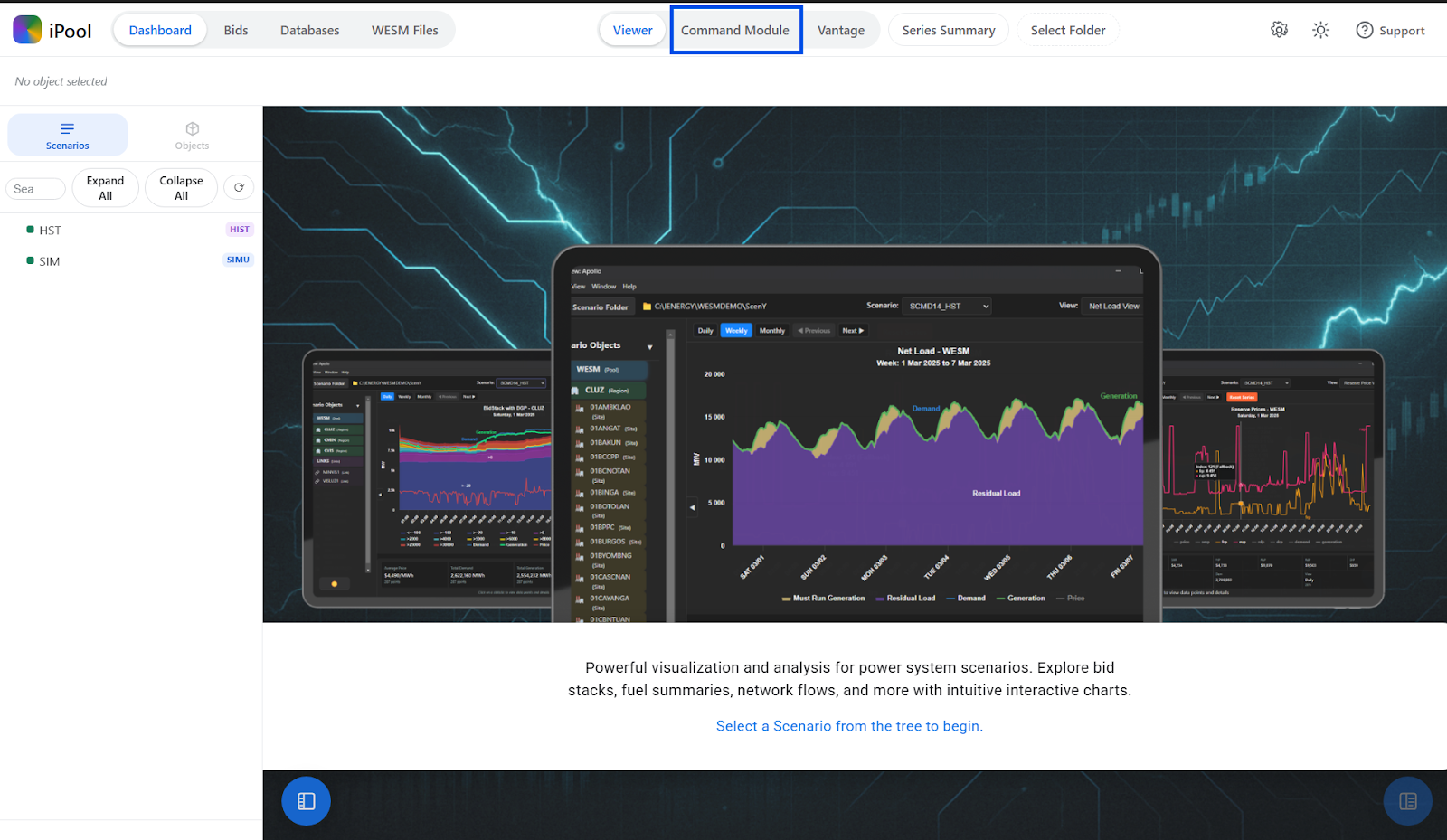
Initialize the Command Module